'%3e%3cpath%20d='M%2034%20-106.8%20L%20173.5%20-141.7%20A%2011.8%2027.3%200%200%201%20173.5%20-87.1%20L%2034%20-82.8%20Z'%20fill='%23ffffff'%20/%3e%3cpath%20d='M%20-28%20-48%20L%2028%20-48%20L%2064%20112%20L%20-64%20112%20Z'%20fill='%23ffffff'%20/%3e%3cpath%20d='M%20-88%20112%20L%2088%20112%20L%20108%20158%20L%20-108%20158%20Z'%20fill='%23ffffff'%20/%3e%3crect%20x='-50'%20y='-62'%20width='100'%20height='14'%20fill='%23ffffff'%20/%3e%3cpath%20d='M%20-34%20-97.2%20L%20-173.5%20-93.0%20A%2011.8%2027.3%200%200%200%20-173.5%20-38.4%20L%20-34%20-73.2%20Z'%20fill='%23ffffff'%20/%3e%3crect%20x='-30'%20y='-122'%20width='60'%20height='62'%20fill='%23ffffff'%20/%3e%3cpath%20d='M%20-50%20-122%20A%2056%2056%200%200%201%2050%20-122%20Z'%20fill='%23ffffff'%20/%3e%3ccircle%20cx='0'%20cy='-155'%20r='12'%20fill='%23ffffff'%20/%3e%3c/g%3e%3c/svg%3e) Proval
ProvalGitLab
Connect GitLab to Proval with a personal access token and project webhook.
Connect GitLab to Proval with a personal access token, the Proval dashboard forms, and a project webhook.
External network. If GitLab reaches Proval over the public internet, use
https://(reverse proxy in front of port 7901). Internal LANhttp://is fine for many self-hosted setups.
Prerequisites
- Quick Start completed. Proval is running
- A model provider configured in Proval
- GitLab can reach Proval on port 7901 (Network)
Step 1: Personal access token
- Preferences → Access Tokens
- Create a token with the
apiscope
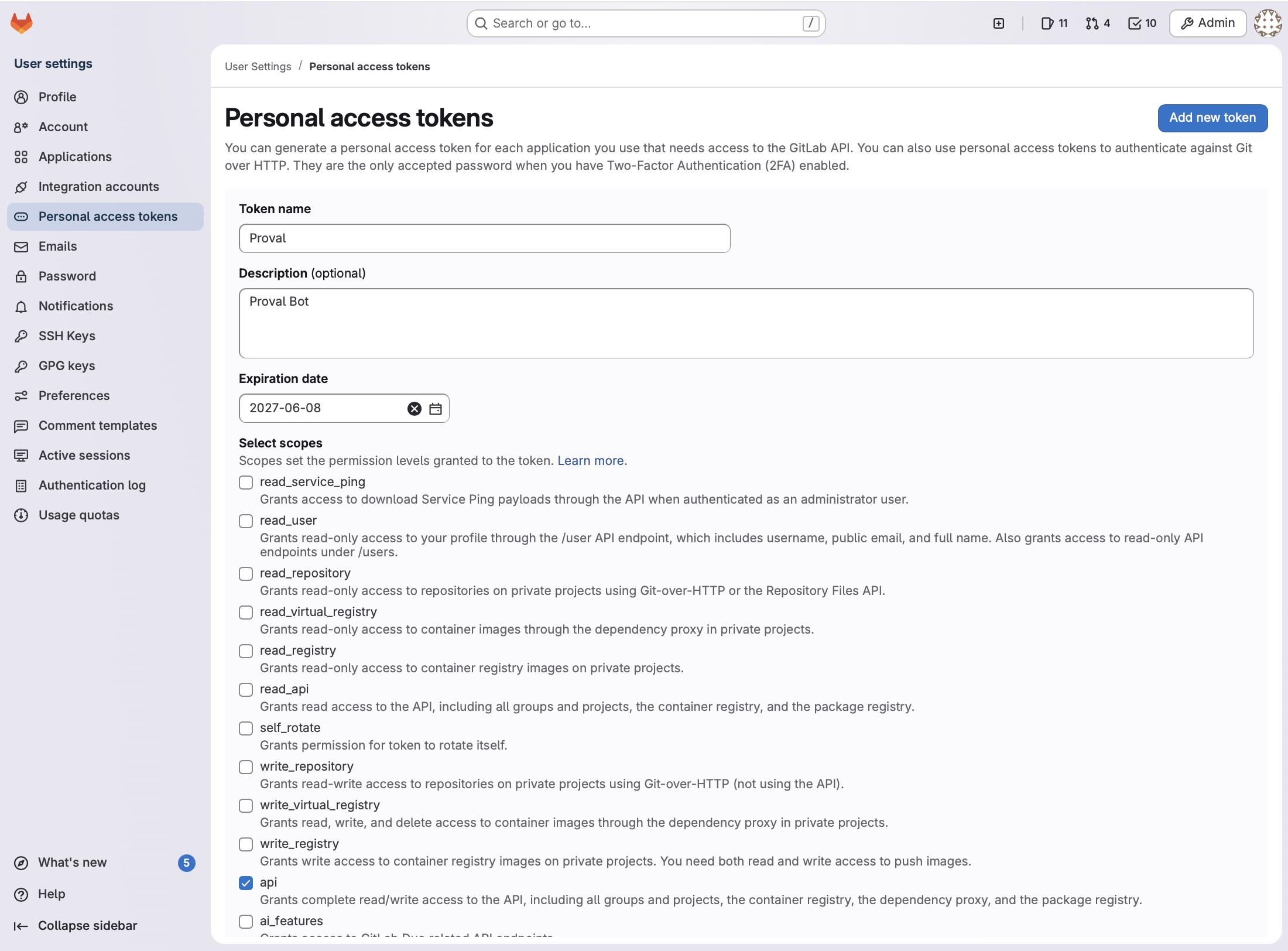
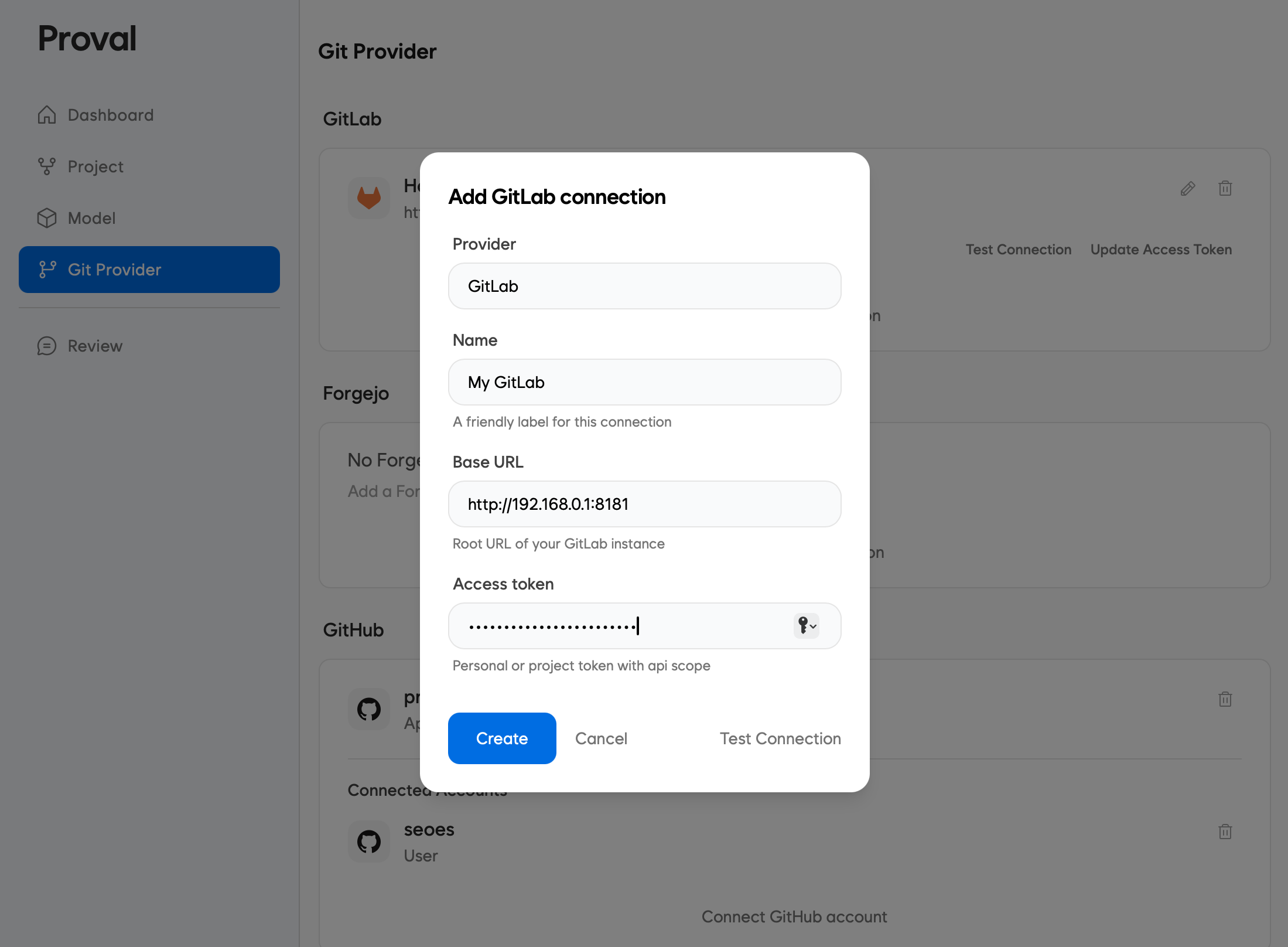
Step 2: Connect in Proval
GitLab connection
- Dashboard → Git Provider → Add GitLab connection
- Fill in the form
- Test Connection, then save
Repository
Choose one path.
Manual (default)
- Repositories → Add repository
- Fill in the form
- Create
The connection account must already be a Maintainer on the project. Use the same webhook secret in Step 3.
Automatic registration
- On the GitLab connection card, open the settings (gear) icon and go to Edit connection
- Turn on Automatic repository registration, fill in Default Config including the webhook secret, and save
- Share the webhook URL and secret with your team. On each project they add the connection account as a member with Maintainer or above, then add the project webhook
- On the first merge request, issue, or comment, Proval registers the repository. You do not add each repository in the dashboard first
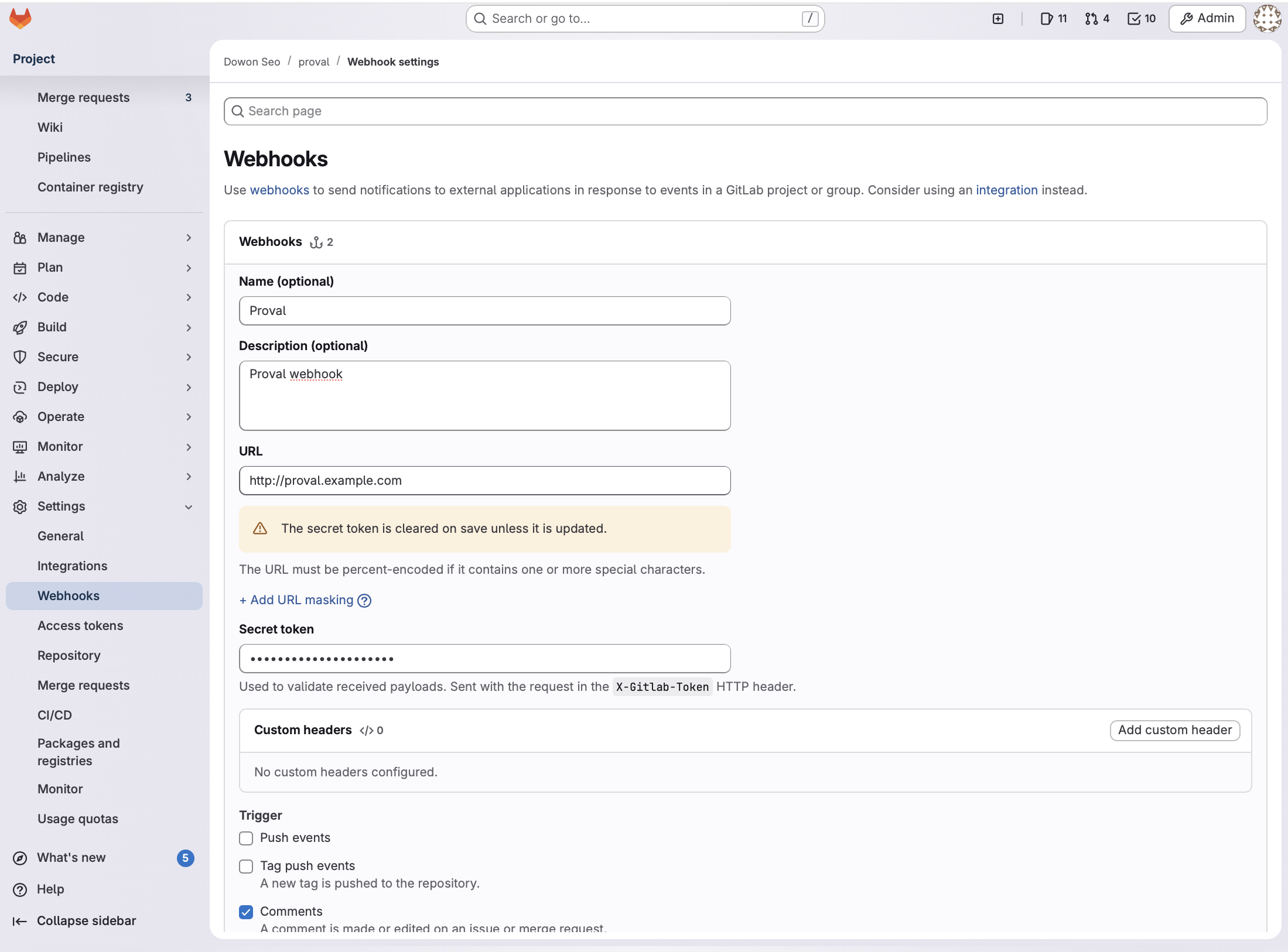
Step 3: Project webhook
http://<your-server>:7901/webhook/gitlab
Use https:// when TLS terminates before Proval. LAN http:// may require allow internal webhooks.
- Project → Settings → Webhooks
- Fill in the form
- Enable:
- Merge request events
- Comments
- Issues events
Merge request events include open, reopen, and update (push or draft to ready). Proval reviews on first push or every push per repository settings, and skips draft MRs until they become ready.
Allow internal HTTP webhooks
When GitLab and Proval are on a private LAN with plain http://:
- Admin → Settings → Network → Outbound requests
- Enable Allow requests to the local network from webhooks and integrations, or add Proval's IP to the allowlist
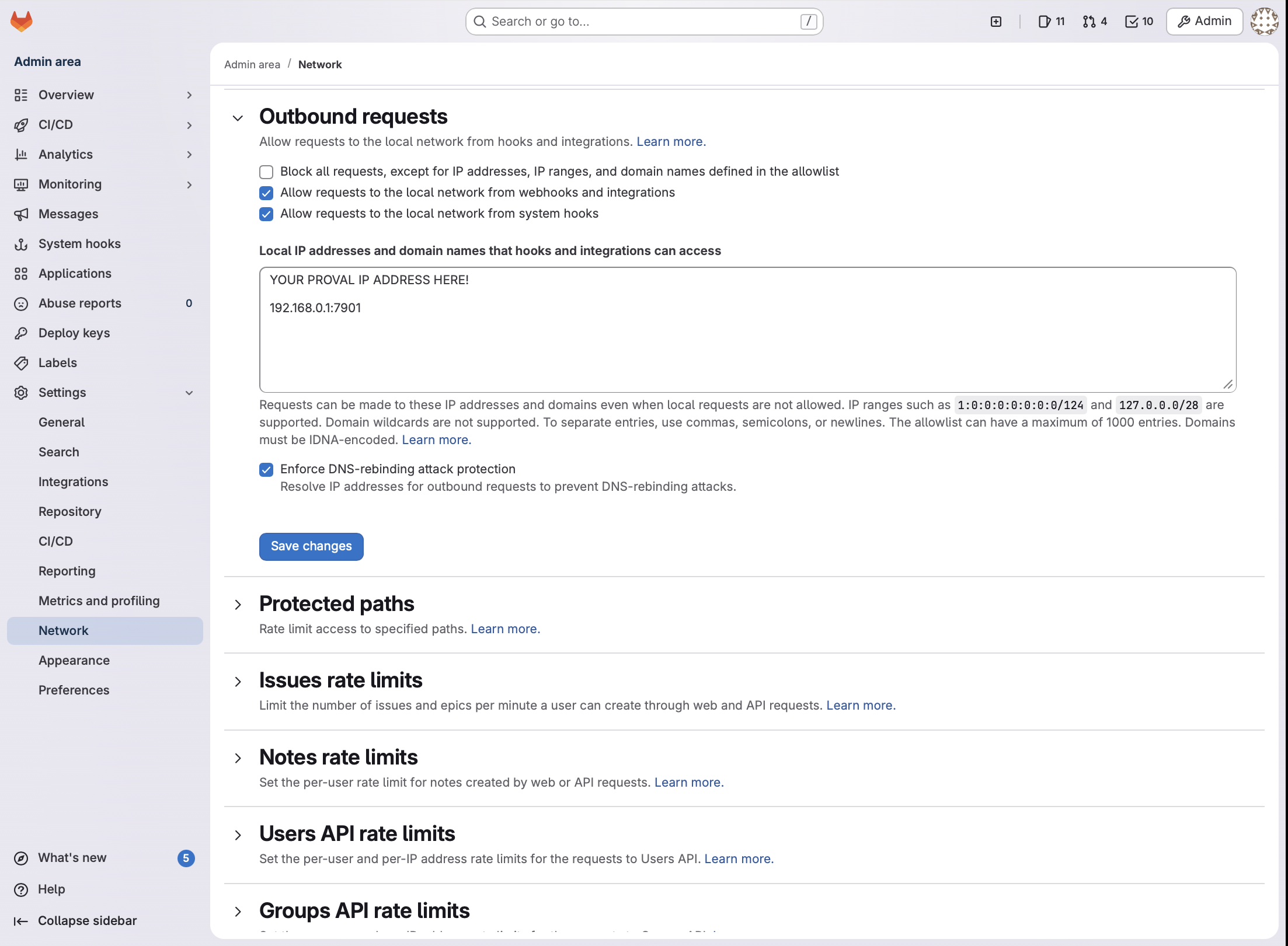
See GitLab: Filtering outbound requests.
Troubleshooting
- 401 — secret does not match Proval
- 404 — repository not registered in Proval, automatic registration is off, or the connection account is not a Maintainer on the project
- Blocked / local network — Allow internal webhooks
- No review — GitLab cannot reach port 7901, or events not enabled
- Test connection fails — invalid token, wrong base URL, or missing
apiscope