'%3e%3cpath%20d='M%2034%20-106.8%20L%20173.5%20-141.7%20A%2011.8%2027.3%200%200%201%20173.5%20-87.1%20L%2034%20-82.8%20Z'%20fill='%23ffffff'%20/%3e%3cpath%20d='M%20-28%20-48%20L%2028%20-48%20L%2064%20112%20L%20-64%20112%20Z'%20fill='%23ffffff'%20/%3e%3cpath%20d='M%20-88%20112%20L%2088%20112%20L%20108%20158%20L%20-108%20158%20Z'%20fill='%23ffffff'%20/%3e%3crect%20x='-50'%20y='-62'%20width='100'%20height='14'%20fill='%23ffffff'%20/%3e%3cpath%20d='M%20-34%20-97.2%20L%20-173.5%20-93.0%20A%2011.8%2027.3%200%200%200%20-173.5%20-38.4%20L%20-34%20-73.2%20Z'%20fill='%23ffffff'%20/%3e%3crect%20x='-30'%20y='-122'%20width='60'%20height='62'%20fill='%23ffffff'%20/%3e%3cpath%20d='M%20-50%20-122%20A%2056%2056%200%200%201%2050%20-122%20Z'%20fill='%23ffffff'%20/%3e%3ccircle%20cx='0'%20cy='-155'%20r='12'%20fill='%23ffffff'%20/%3e%3c/g%3e%3c/svg%3e) Proval
ProvalQuick Start
Run Proval with Docker Compose and open the dashboard.
Requirements
- Docker and Docker Compose on the machine that will host Proval
Run with Docker Compose
Create a docker-compose.yml file:
services:
    proval:
        image: ghcr.io/seoes/proval:latest
        ports:
            - "7900:7900"
            - "7901:7901"
        volumes:
            - ./data:/data
        environment:
            - ENCRYPTION_KEY=[Encryption Key]
ENCRYPTION_KEY is a random string generated by openssl rand -base64 32.
openssl rand -base64 32
LAN HTTP needs no extra setting. When the dashboard is served over HTTPS, set COOKIE_SECURE=true (see HTTPS).
Start the stack:
docker compose up -d
On your browser, open the dashboard:
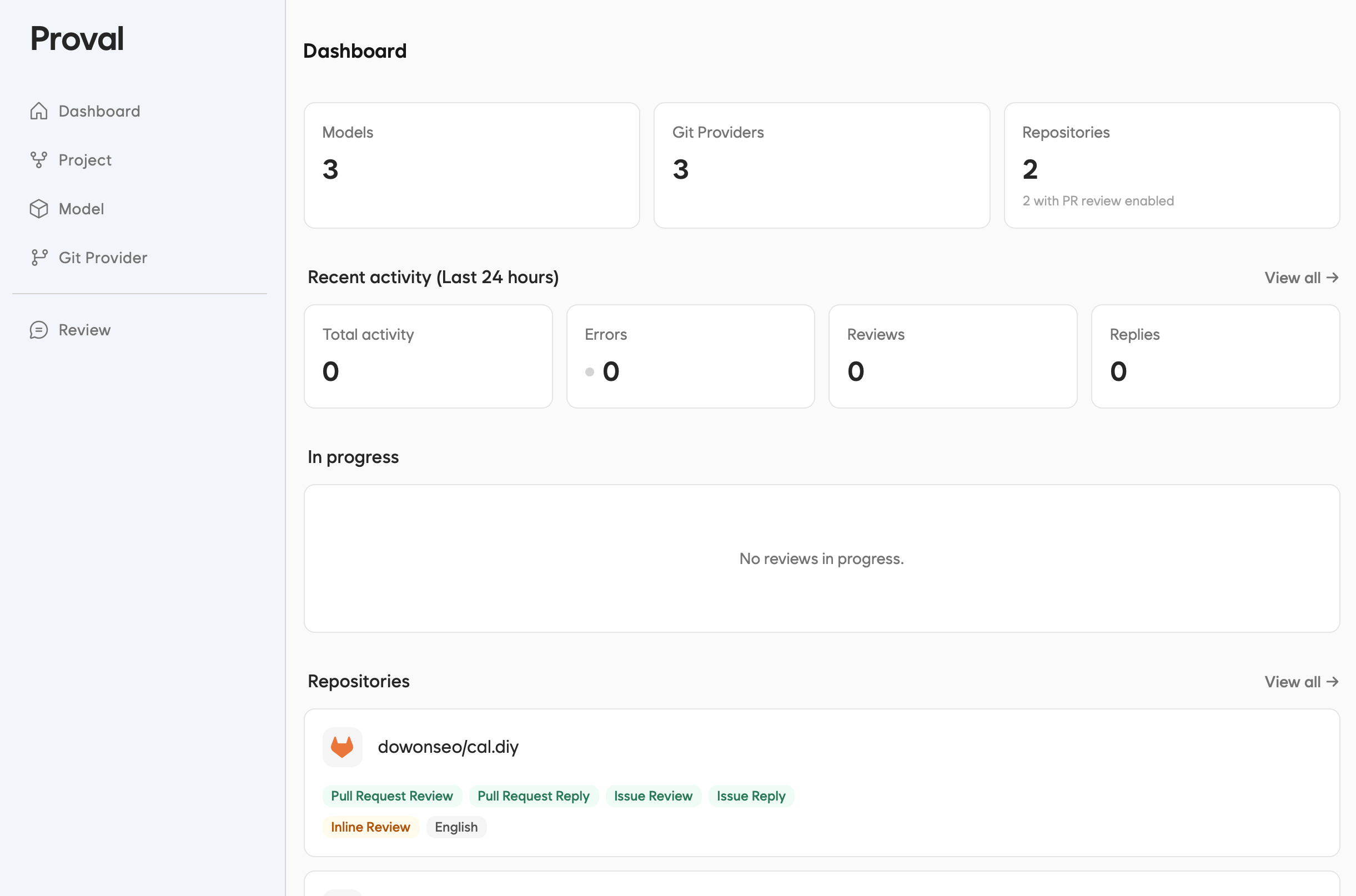
http://<your-server>:7900
Replace <your-server> with your server hostname or IP address.
Network
| Port | Purpose |
|---|---|
| 7900 | Dashboard |
| 7901 | Receive Webhooks |
Configure your Git provider to send webhooks to port 7901 on your Proval instance.
http://<your-server>:7901/webhook/gitlab
http://<your-server>:7901/webhook/forgejo
http://<your-server>:7901/webhook/github
On a private LAN, GitLab and Forgejo block
http://webhook URLs by default. Before you use one, follow the setup in the GitLab and Forgejo guides.
HTTPS
GitHub requires a public
https://URL for webhooks. Set up HTTPS before you connect.
To use HTTPS, put a reverse proxy in front of Proval. When the dashboard is reached over HTTPS, set COOKIE_SECURE=true on the Proval container so the browser will not send proval_session on plain HTTP.
Common choices:
- nginx
- Caddy
- Traefik
- Cloudflare Tunnel
http://<your-server>:7901/webhook/gitlab → https://example.com/webhook/gitlab
Details depend on your Git host. See GitLab, Forgejo, or GitHub.
What's next
- Optional: run on Kubernetes with the Kubernetes example
- Set LLM, or OpenRouter / llama.cpp for example endpoint values
- Your Git provider: GitLab · Forgejo · GitHub